
October 23, 2026
A practical guide for founders and small teams on building a simple, AI assisted support system without hiring a dedicated support department.
Anablock is a technology and AI systems company helping businesses automate workflows, connect tools, improve lead handling, and build smarter digital growth systems. The Anablock team writes about AI implementation, automation, CRM, lead generation, SEO/AEO, and practical ways businesses can use technology to operate better and grow.
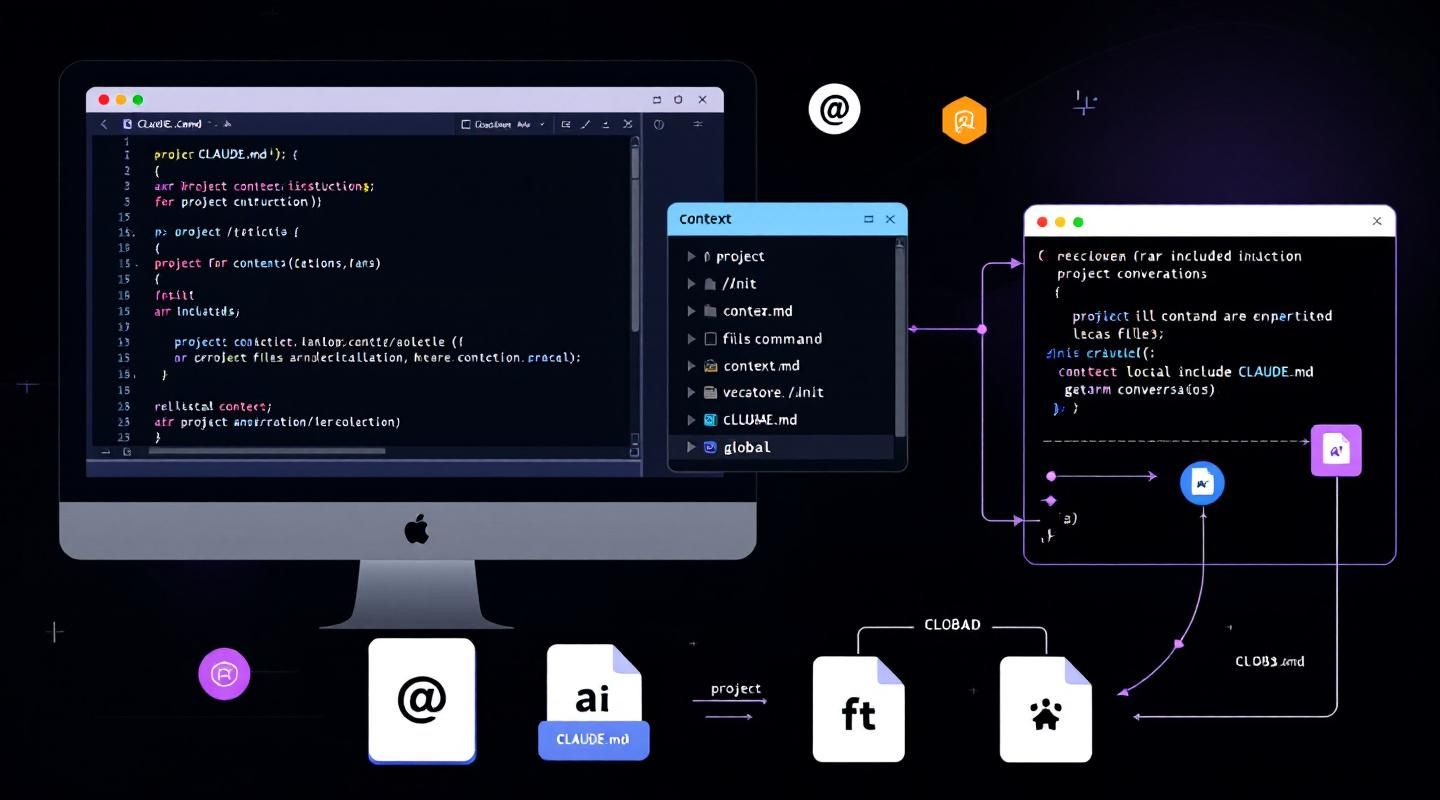
Claude Code comes with built-in commands that you can access by typing a forward slash, but you can also create your own custom commands to automate repetitive tasks you run frequently.
To create a custom command, you need to set up a specific folder structure in your project:
.claude folder in your project directorycommands inside itaudit.md)The filename becomes your command name - so audit.md creates the /audit command.
Here's a practical example of a custom command that audits project dependencies for vulnerabilities:
Audit the project dependencies for vulnerabilities:

1. Run `npm audit` to identify vulnerable packages
2. Run `npm audit fix` to apply available updates
3. Run the test suite to verify updates didn't break anything
This audit command does three things:
npm audit to find vulnerable installed packagesnpm audit fix to apply updatesAfter creating your command file, you must restart Claude Code for it to recognize the new command.
Custom commands can accept arguments using the $ARGUMENTS placeholder. This makes them much more flexible and reusable.
For example, a write_tests.md command might contain:
Write comprehensive tests for: $ARGUMENTS

Testing conventions:
* Use Vitests with React Testing Library
* Place test files in a __tests__ directory in the same folder as the source file
* Name test files as [filename].test.ts(x)
* Use @/ prefix for imports

Coverage:
* Test happy paths
* Test edge cases
* Test error states
You can then run this command with a file path:
/write_tests the use-auth.ts file in the hooks directory
The arguments don't have to be file paths - they can be any string you want to pass to give Claude context and direction for the task.
Automation - Turn repetitive workflows into single commands
Consistency - Ensure the same steps are followed every time
Context - Provide Claude with specific instructions and conventions for your project
Flexibility - Use arguments to make commands work with different inputs
Custom commands are particularly useful for project-specific workflows like running test suites, deploying code, or generating boilerplate following your team's conventions.
Written by

AI Insights & Innovations
Anablock is a technology and AI systems company helping businesses automate workflows, connect tools, improve lead handling, and build smarter digital growth systems. The Anablock team writes about AI implementation, automation, CRM, lead generation, SEO/AEO, and practical ways businesses can use technology to operate better and grow.


If you are ready to move from research to implementation, we can help map the right AI system around your tools, data, team, and goals.